Onboard a Repository
Beta Release. Simple guide for adding a GitHub or Azure DevOps repo through the onboarding agent in Agent Studio. In the UI that agent may appear as Setup or Rules Optimizer.
This walkthrough installs plugins, stores the repo URL, checks secrets, and creates the inbuilt Xians webhook under Agent Settings → Connections. You do not create a webhook on GitHub or Azure DevOps.
Before you start
Section titled “Before you start”You need:
- Access to Agent Studio and the Xianix agent for your tenant
- The HTTPS clone URL of the repo (for example
https://github.com/org/repo.gitor an Azure DevOps_gitURL) - Permission to add secrets in Studio and to create the inbuilt webhook under Agent Settings → Connections
Have these ready (add only what is missing when the agent asks):
| Secret key | Used for |
|---|---|
ANTHROPIC-API-KEY | Model calls during plugin runs |
GITHUB-TOKEN | GitHub clone and plugin access (typical scopes: repo, workflow) |
AZURE-DEVOPS-TOKEN | Azure DevOps clone and plugin access |
Do not paste token values into chat. Add them in Studio secrets, then tell the agent done.
1. Open the agent and ask to set up the repo
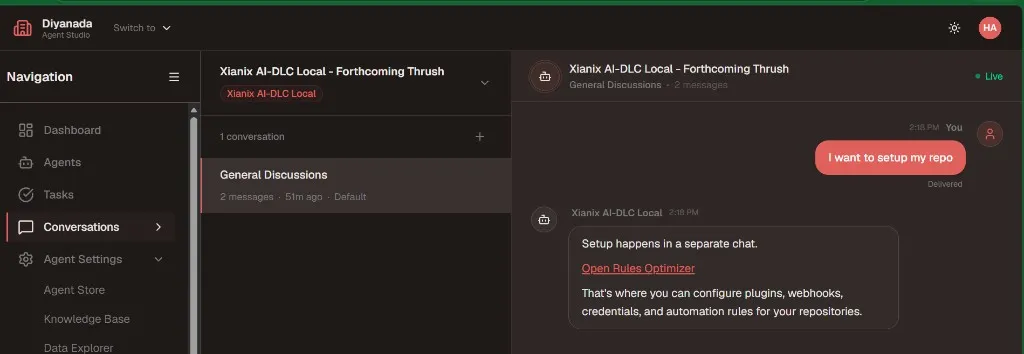
Section titled “1. Open the agent and ask to set up the repo”- Sign in to Agent Studio.
- Open the Xianix agent and go to Conversations.
- In General Discussions, say you want to set up the repo — for example
I want to setup my repo. - The agent replies that setup happens in a separate chat. Click Open Setup or Open Rules Optimizer (the label may be either).
2. Continue in the setup chat
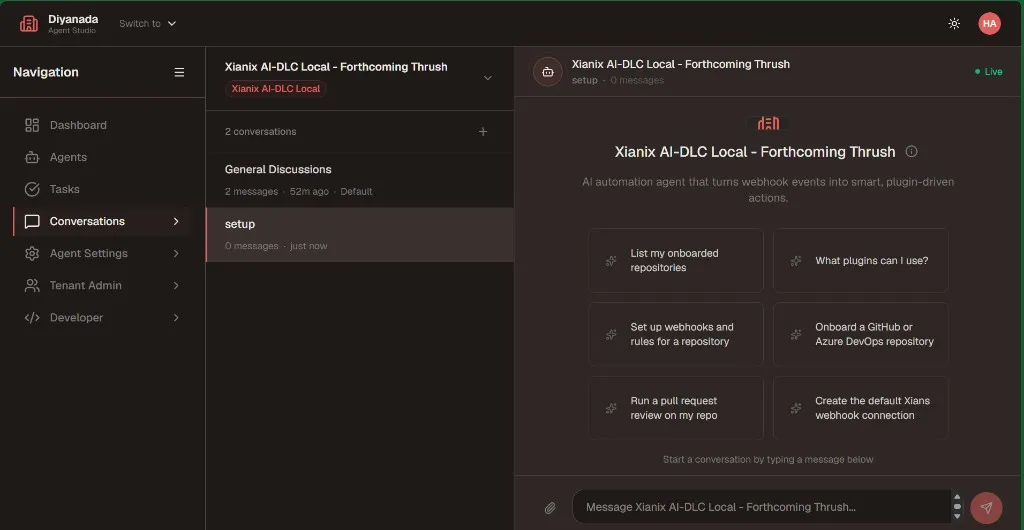
Section titled “2. Continue in the setup chat”Clicking the link opens a Setup (or Rules Optimizer) conversation. That chat is the onboarding agent (Beta Release).
Use a starter such as Set up webhooks and rules for a repository or Onboard a GitHub or Azure DevOps repository, or type the clone URL.
Stay in this setup conversation for the rest of the steps.
3. Give the clone URL
Section titled “3. Give the clone URL”Paste the full HTTPS clone URL. Do not invent or shorten it.
Examples:
- GitHub:
https://github.com/org/repo.git - Azure DevOps:
https://dev.azure.com/org/project/_git/repo
The agent infers the platform from the host (github.com → GitHub, dev.azure.com / *.visualstudio.com → Azure DevOps). Confirm if it asks (self-hosted hosts need this).
4. Pick plugins
Section titled “4. Pick plugins”The agent lists marketplace plugins that are ready to install (for example PR review).
- Choose the plugin(s) you want.
- Confirm before it installs anything.
Skip plugins that are marked coming soon.
5. Confirm webhook triggers
Section titled “5. Confirm webhook triggers”The agent lists suggested triggers for those plugins (execution names + match rules).
- Read the list.
- Tell it which triggers to enable.
- Wait until you have confirmed — it should not write webhook executions before that.
You can defer triggers if you only want the plugin installed for chat for now.
6. Add missing secrets
Section titled “6. Add missing secrets”The agent checks the tenant vault. It only asks for keys that are missing.
- Open Studio → Settings → Secrets (Agent Settings → Secrets).
- Add each missing key with the exact name (
GITHUB-TOKEN,AZURE-DEVOPS-TOKEN,ANTHROPIC-API-KEY, …). - Go back to chat and say
done.
Never paste the secret value into the chat.
7. Let the agent install
Section titled “7. Let the agent install”After plugins, triggers, and secrets are confirmed, the agent installs into agent-scoped rules.json.
You are done with this step only when it says the plugin was installed (not “already configured”, and not an error).
8. Create the inbuilt Default webhook
Section titled “8. Create the inbuilt Default webhook”When the agent asks to create the webhook, say yes (or “create webhook”).
This is the only webhook step. The agent creates the inbuilt Xians connection under Agent Settings → Connections → Default webhook. It does not create a GitHub or Azure DevOps webhook.
Use the webhook URL it prints in that same turn. Do not reuse an older URL from earlier in the chat.
The repo is onboarded when:
- The clone URL is stored for this activation
- The chosen plugins show as installed
- Secrets for that platform are present
- Connections shows the inbuilt Default webhook
You can now run a plugin from the main (non-Setup) chat.
If it fails
Section titled “If it fails”| What you see | What to do |
|---|---|
| Agent asks for the URL again | Paste the full HTTPS clone URL. Do not type only the repo name. |
| Plugin “already configured” | It was already installed. Continue to webhook / secrets if those are still missing. |
Install did not update rules.json | Stay in the Setup / Rules Optimizer chat and retry. Do not treat a tool error as success. |
Missing GITHUB-TOKEN / AZURE-DEVOPS-TOKEN | Add the key in Secrets, then say done. |
| GitHub “repository not found” later | URL is wrong, or the token cannot see a private repo. Hosts look the same for both cases. |
| Webhook URL looks like an old tunnel host | Ask the agent to create the webhook again and use only the latest URL. |
See also
Section titled “See also”- Rules Configuration —
rules.jsonreference after onboarding - AI Hub Configuration — report execution metrics to 99x AI Hub